

Payments import
Main Information
Payment Import is designed for importing payments into the internet banking system.
➀ - To navigate to the import feature, expand the "Payments" section in the side menu and go to "Payment Import."
In the internet banking system, you can import files in the following formats: *.csv; FiDAViSta, 1C, ISO 20022.
For detailed instructions on payment import, you can download the user manual of the internet banking system (page 22 - section 2.6.7).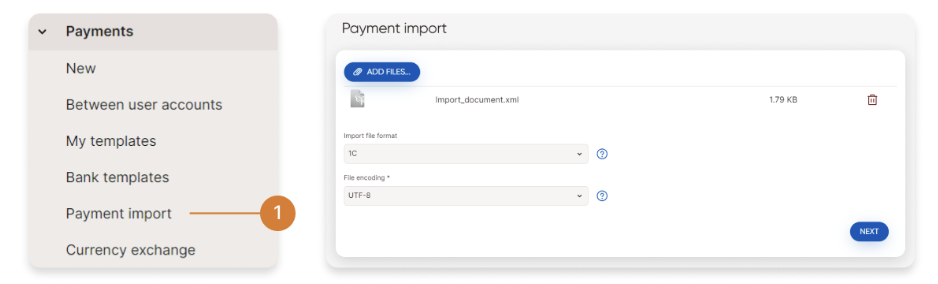
Viewing Errors
➀ - If a payment cannot be imported, by clicking on the "Errors" button, you can view a list of errors detected in the payment.
➁ - The list of errors is displayed in a separate window and provides information about the errors found in the file. Click "OK" or "X" to close the window. 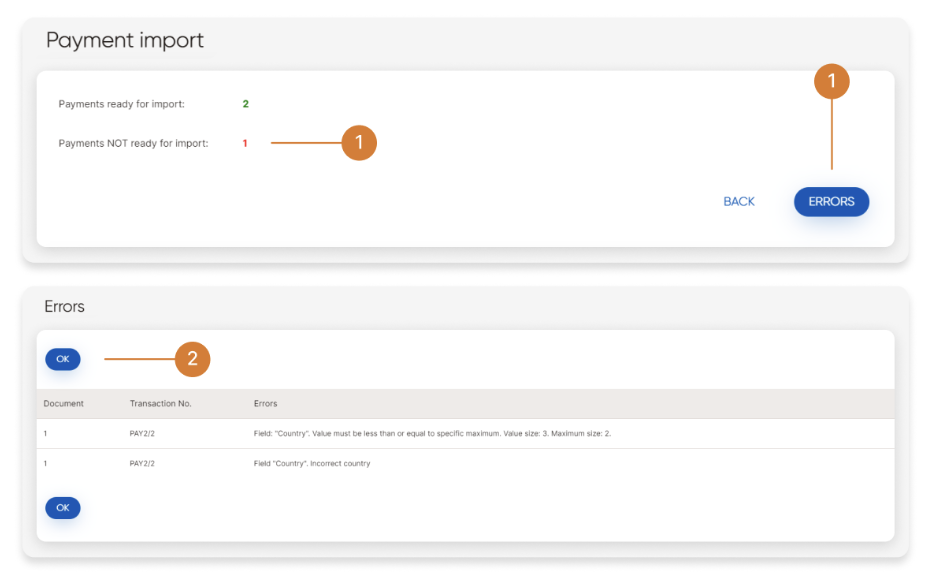
Partial Import
➀ - You can perform a partial import of the file by clicking the "Save" button. Successfully processed payments will be imported into the internet banking system, and you can view them with the status "New" in the "Customer Transactions/For Signature" menu.
➁ - You can cancel the import of the file by clicking the "Return to Start" button. 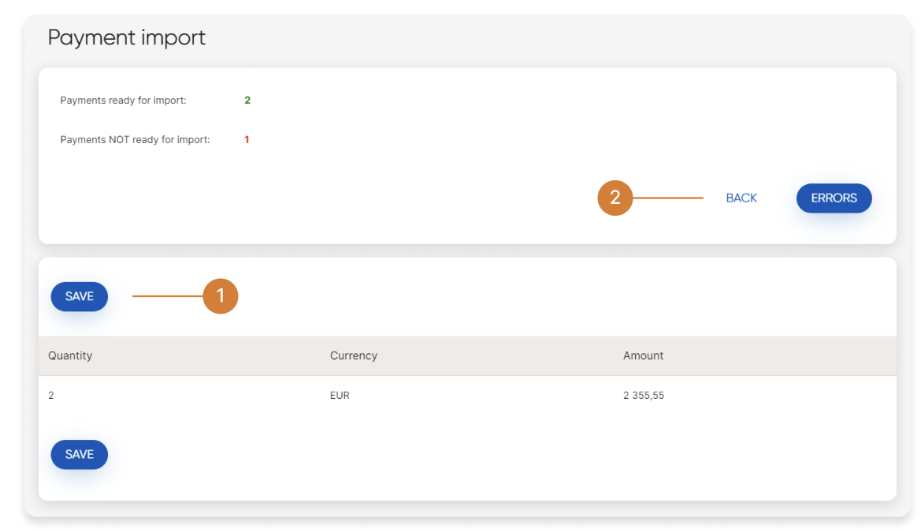
How to Import a File in 1C Format?
To import a file in 1C format in the internet banking system, follow these steps:
➀ - In the payment import screen, select "1C" as the "Import File Format" value.
➁ - Choose the desired file encoding in the "File Encoding" field.
➂ - Click the "Add" button and select the 1C format file, which will be automatically uploaded.
➃ - Click the "Next" button.
➄ - A screen will open displaying the number of successfully and unsuccessfully processed payments for import.
➅ - If all payments are processed successfully, click the "Save" button. The file with the payments will be imported into the internet banking system, and you can view the payments in the "Customer Transactions/For Signature" menu with the status "New."
➆ - The customer can cancel the import of the file by clicking the "Return to Start" button. 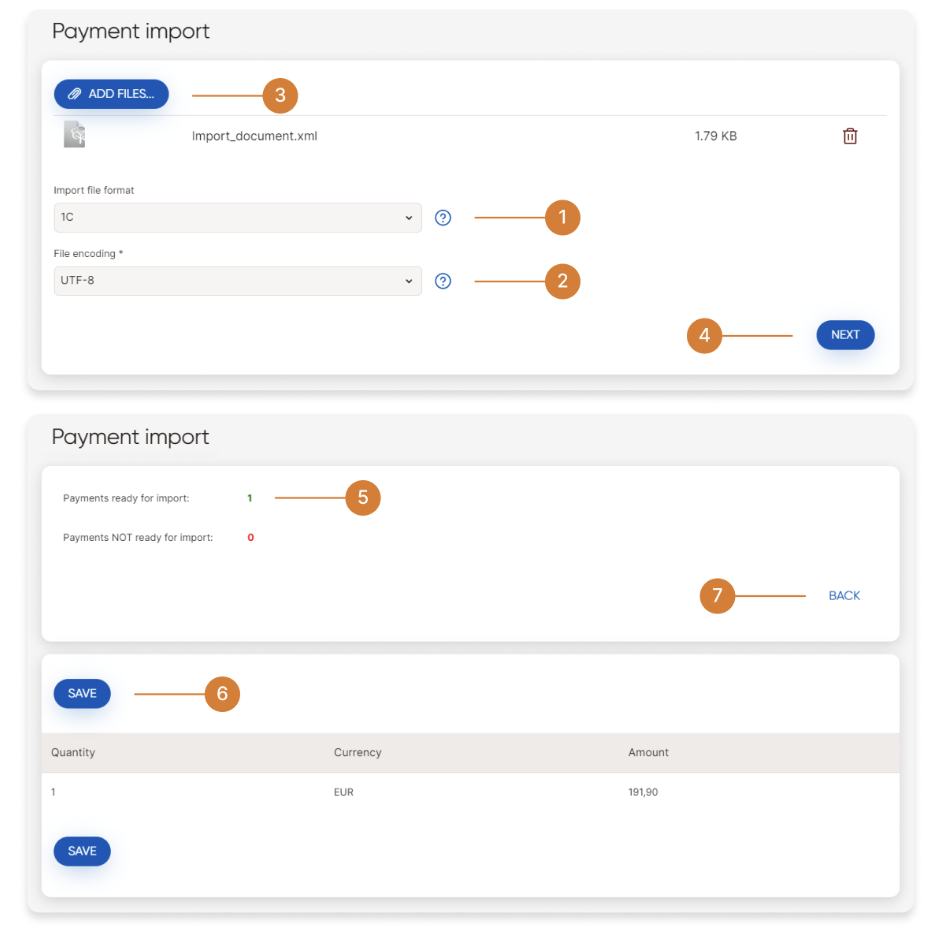
How to Import a File in FiDAViSta Format?
To import a file in FiDAViSta format in the internet banking system, follow these steps:
➀ - In the payment import screen, select "FiDAViSta" as the "Import File Format" value.
➁ - Click the "Add" button and select the FiDAViSta format file, which will be automatically uploaded.
➂ - Click the "Next" button.
➃ - A screen will open displaying the number of successfully and unsuccessfully processed payments for import.
➄ - If all payments are processed successfully, click the "Save" button. The file with the payments will be imported into the internet banking system, and you can view the payments in the "Customer Transactions/For Signature" menu with the status "New."
➅ - You can cancel the import of the file by clicking the "Return to Start" button. 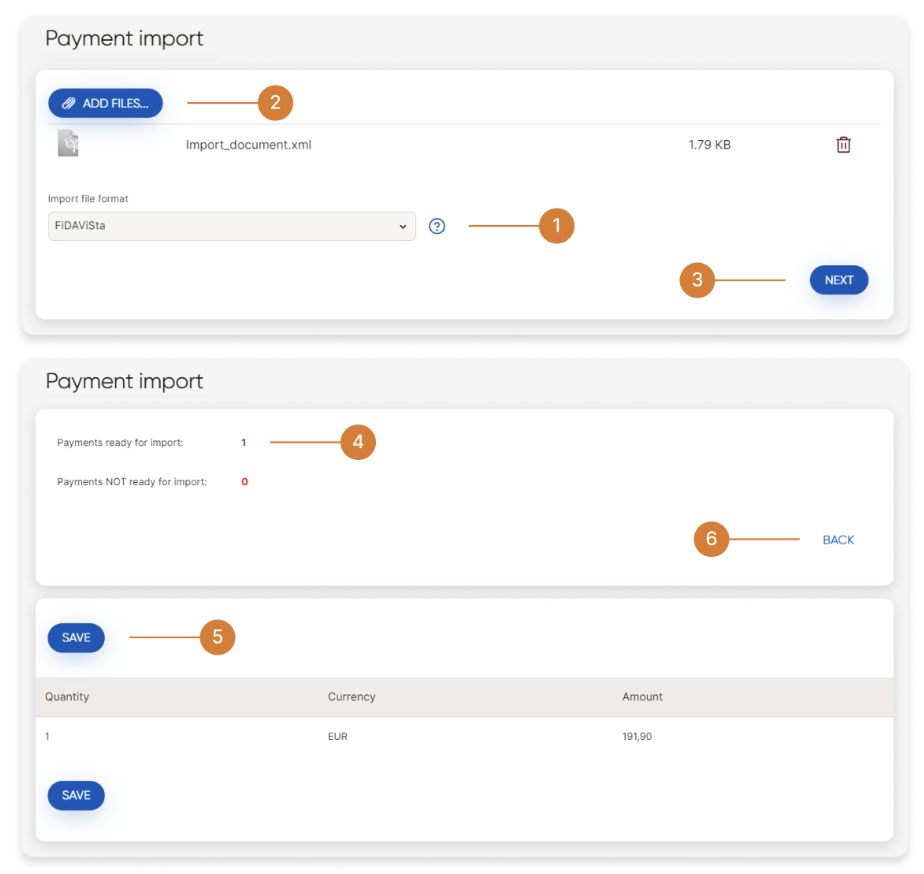
How to Import a File in ISO 20022 Format?
To import a file in ISO 2022 format in the internet banking system, follow these steps:
➀ - In the payment import screen, select "ISO 20022" as the "Import File Format" value.
➁ - Click the "Add" button and select the ISO 20022 format file, which will be automatically uploaded.
➂ - Click the "Next" button.
➃ - A screen will open displaying the number of successfully and unsuccessfully processed payments for import.
➄ - If all payments are processed successfully, click the "Save" button. The file with the payments will be imported into the internet banking system, and you can view the payments in the "Customer Transactions/For Signature" menu with the status "New."
➅ - You can cancel the import of the file by clicking the "Return to Start" button. 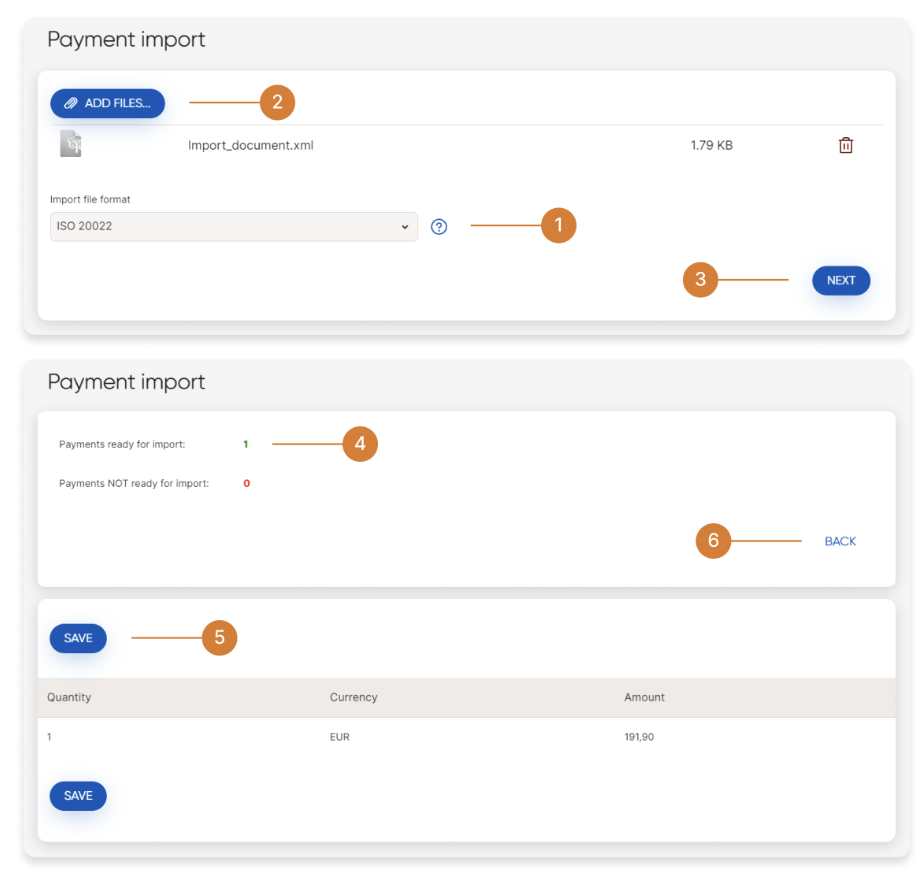
How to Import a File in CSV Format?
To import a file in CSV format in the internet banking system, follow these steps:
➀ - In the payment import screen, select "CSV" as the "Import File Format" value.
➁ - Click the "Add" button and select the CSV format file, which will be automatically uploaded.
➂ - Choose the desired file encoding in the "File Encoding" field.
➃ - By default, the comma (",") is set as the field delimiter, which separates the payment fields in the file. You can change this value.
➄ - By default, quotation marks are set as the text field qualifier, indicating that the values of text fields are enclosed in quotation marks. You can change this value.
➅ - Click the "Next" button.
➆ - A screen will open displaying the number of successfully and unsuccessfully processed payments for import.
➇ - If all payments are processed successfully, click the "Save" button. The file with the payments will be imported into the internet banking system, and you can view the payments in the "Customer Transactions/For Signature" menu with the status "New."
➈ - You can cancel the import of the file by clicking the "Return to Start" button.
For detailed instructions on importing a file in CSV format, you can download the user manual of the internet banking system (page 23 - section 2.6.7.3). 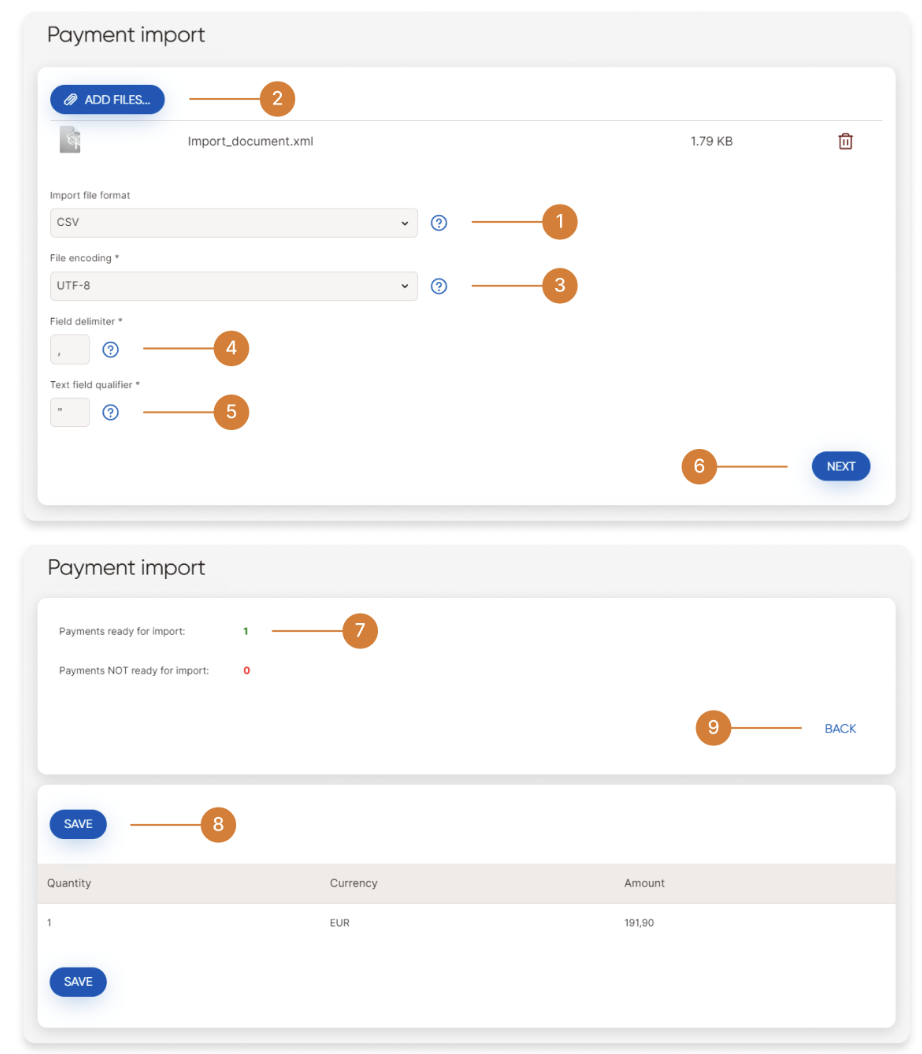
How to Exclude/Include Optional Fields in the Imported CSV File?
Specify the fields required for import.
➀ - Depending on the payment type, fields that must be filled in for import are marked with an asterisk (*), indicating that the field should not be empty for a specific payment type. The field should contain the corresponding value.
➁ - If a specific field is optional for the payment type (there is no asterisk next to the field in the respective column), but the last column is marked with a gray checkmark that cannot be removed, then the specified field should be present in the imported file, but the field value can be empty.
➂ - To import optional fields, they should be marked with a checkmark in the last column. If an optional field is absent in the imported file, it does not need to be marked with a checkmark.
Click the "Save" button to save all the set parameters of the imported file.
For detailed descriptions of the table fields, you can download the user manual of the internet banking system (page 25 - section 5.4). 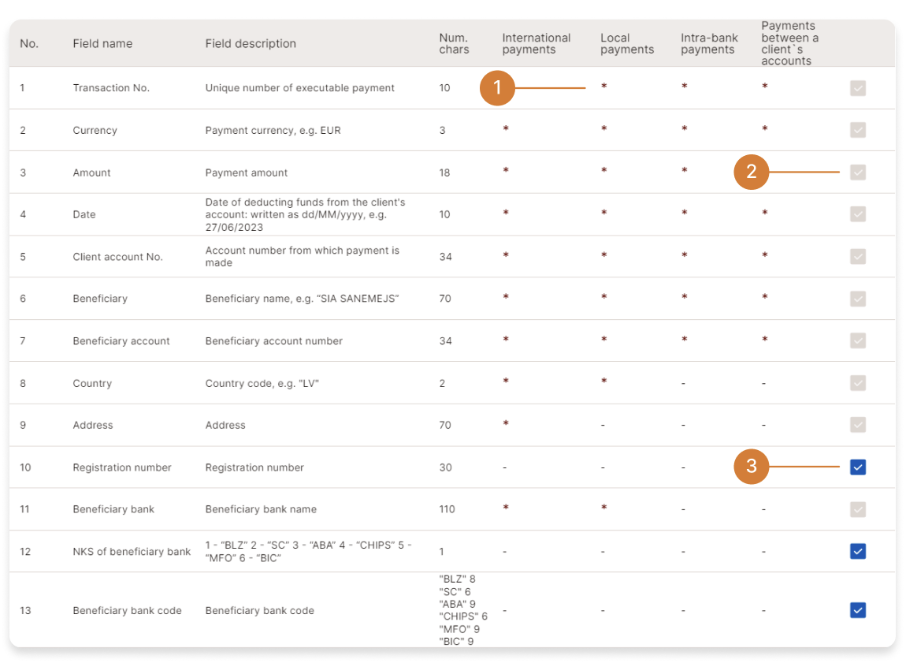
How to Change the Field Sequence in the CSV File Import?
Specify the required fields for import.
To indicate the position number of each payment instruction field in the import file row, click on the field and move it using the mouse to the desired position.
The format of the imported payment file for a single payment instruction (one row according to the parameters specified in the file field table).
Example: "1", "EUR", "10.15", "15.09.2017", "LVXXCBBRXXXXXXXXXXXXX", "SIA Company", "LVXXCBBRXXXXXXXXXXXXX", "LV", "Brīvības iela 98-23 Latvia", "939984", "BluOr Bank AS", "CBBRLV22", "LV", "O", "Info recipient", "379"
Each row in the payment import file corresponds to a single payment instruction.
Click the "Save" button to save all the set parameters of the imported file. 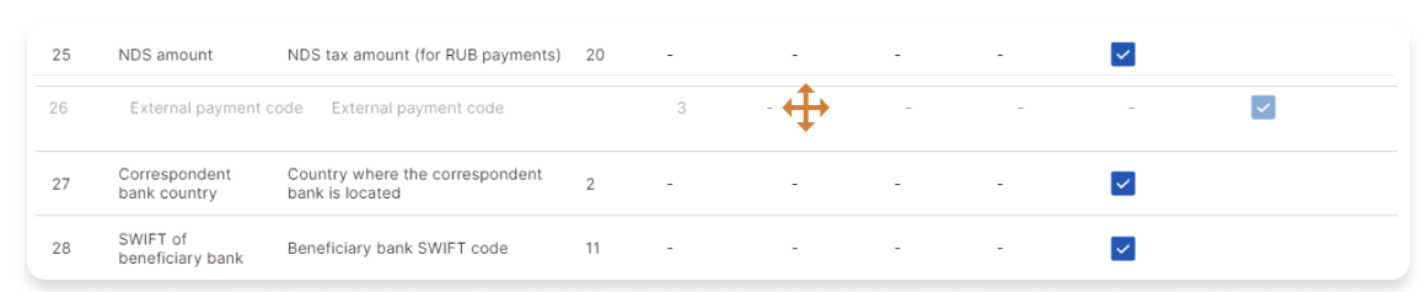
How to Change the Enumerated Value during CSV File Import?
➀ - In the "Enumeration Type" section, the urgency of the payment is specified, which can be changed in the corresponding fields in the "Value in File" column if the urgency values in the import file differ from the default values: Standard - "O"; Urgent - "U"; Express - "E".
Click the "Save" button to save all the set parameters of the imported file. 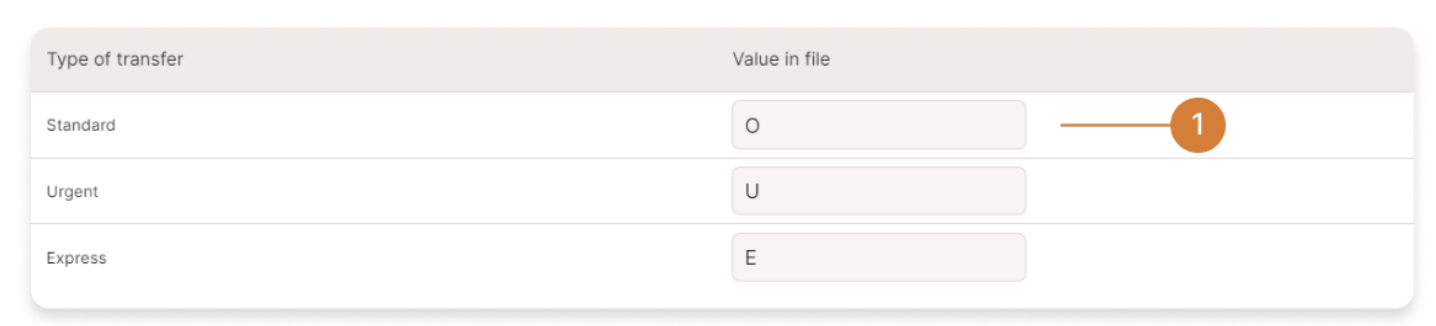
How to Change the Payer of Commission Value during CSV File Import?
➀ - In the "Payer of Commission" section, the payment codes for commissions are specified, which can be changed in the corresponding fields in the "Value in File" column.
Click the "Save" button to save all the set parameters of the imported file. 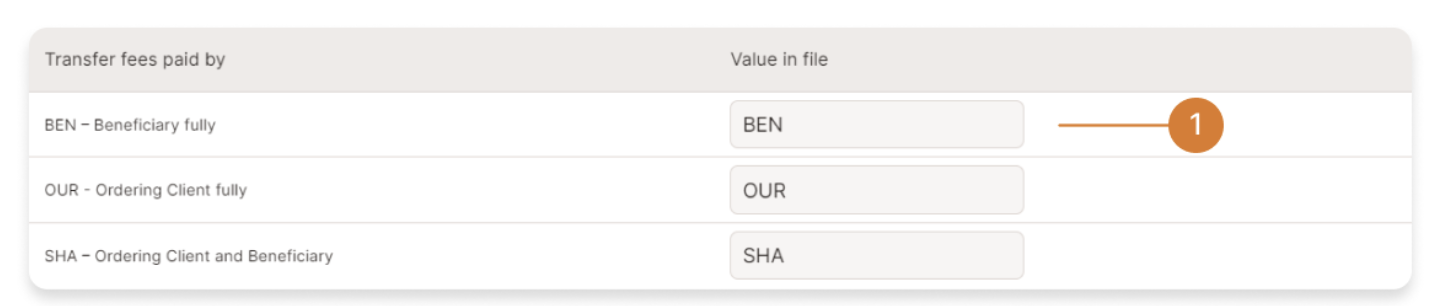
How to Change the Date Format during CSV File Import?
➀ - In the section, several date format templates are available, which can be selected by clicking on the corresponding template.
➁ - The selected template will appear in the "Date Format" field.
Click the "Save" button to save all the set parameters of the imported file. 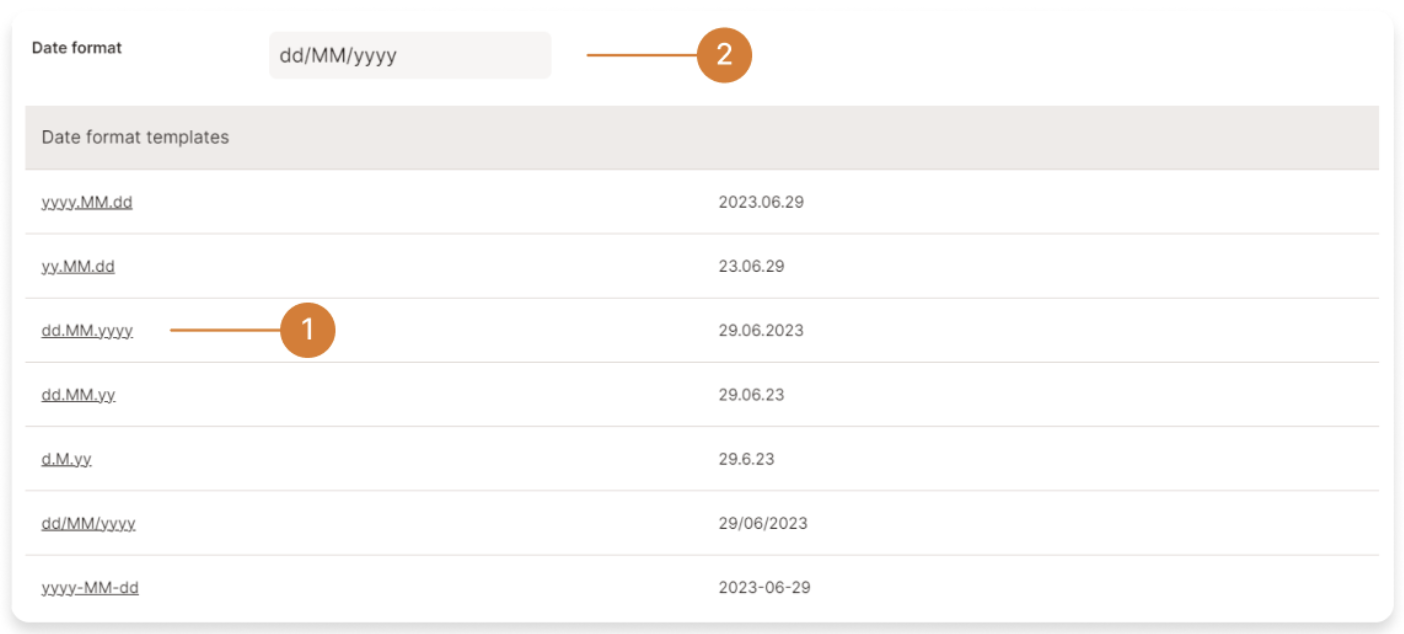
What to Do in Case of Errors during CSV File Import?
In case of errors during import, please ensure that:
• All text fields in the CSV file are enclosed in the text field qualifier character specified in the settings, and it matches the one specified in the internet banking system (by default, it is quotation marks).
• All field values in the CSV file are separated by the field delimiter character specified in the settings (by default, it is a comma).
• The date format in the CSV file is correctly specified and matches the specified date format in the internet banking system.
• All fields in the CSV file have the specified size (number of characters) specified in the internet banking system.
• The mandatory fields in the CSV file are filled with the appropriate values.
• The language encoding in the CSV file matches the language encoding specified in the internet banking system.
• Numeric fields in the CSV file do not contain the same decimal separator symbol as the field delimiter.
• The field sequence specified in the CSV file matches the sequence specified during import in the internet banking system.